Twitch
 Quick Start
Follow these simple steps to set up a Twitch agent in just a few minutes.
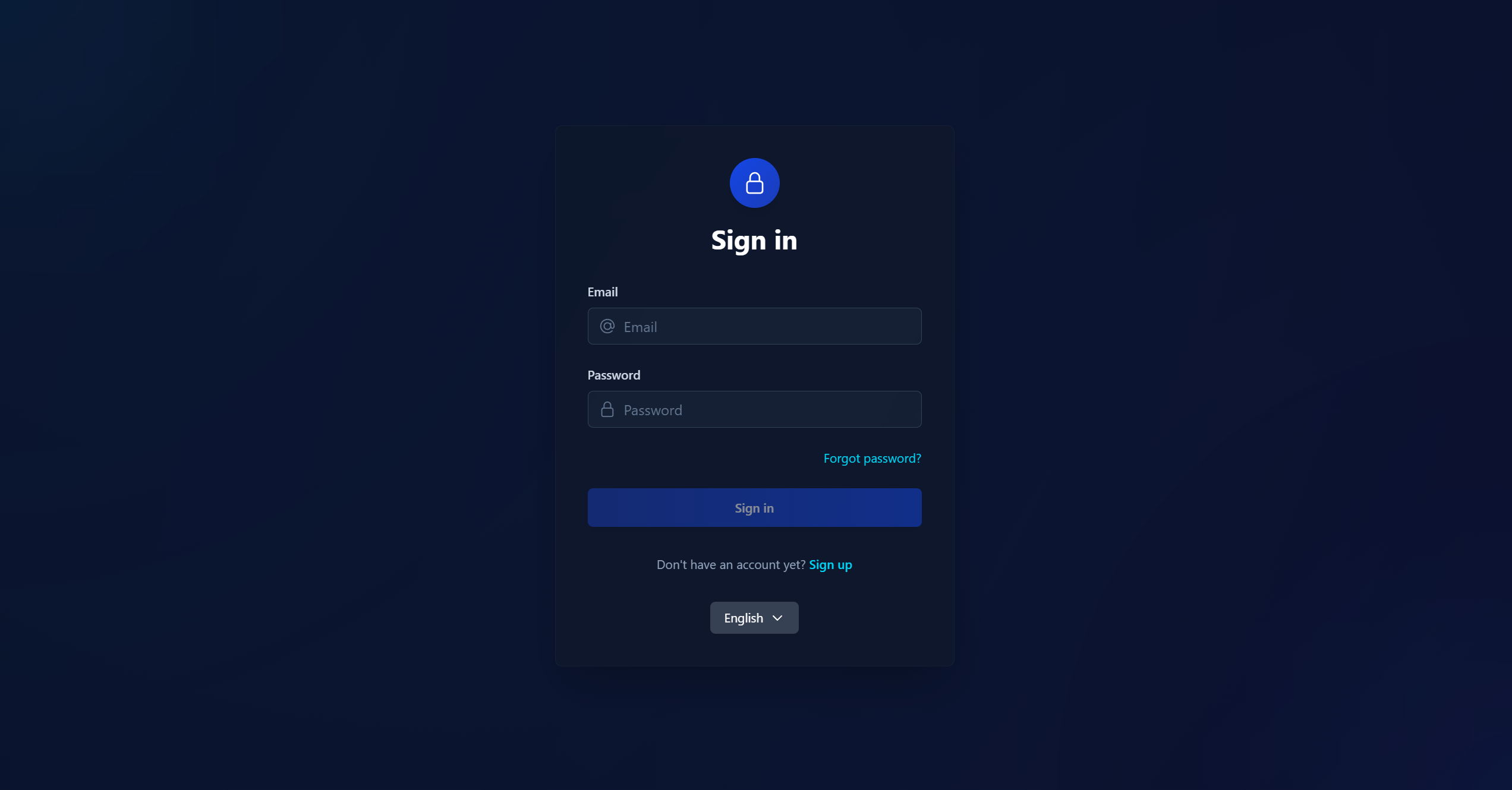
Step 1: Register an Account
Go to console.cavuer.com and create an account or log in if you already have one.
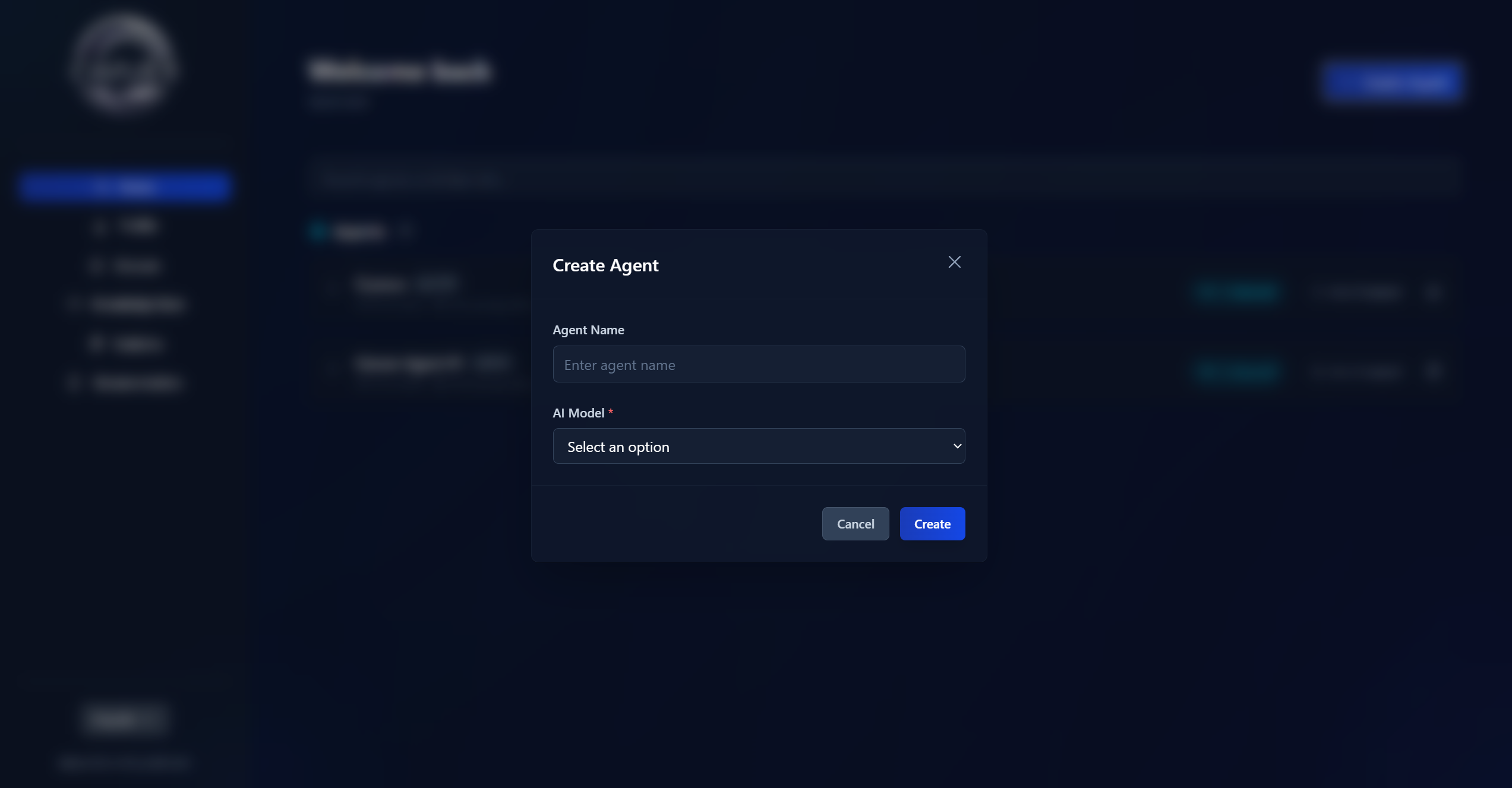
Step 2: Create an Agent
Click the "Create Agent" button in the top right corner, set a name, and choose a language model.
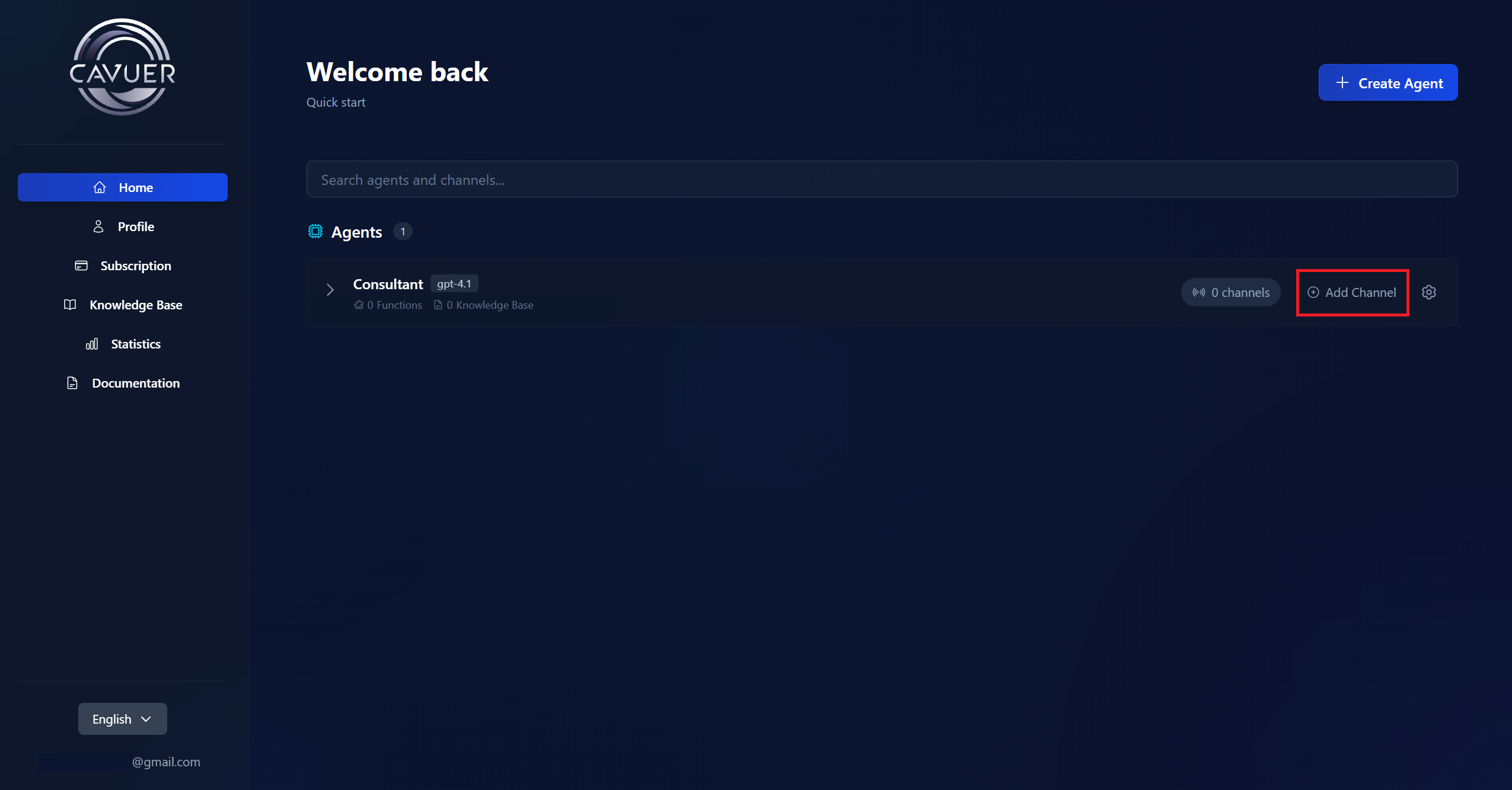
Step 3: Create a Channel
Add a channel to the created agent by clicking Add Channel and select Twitch.
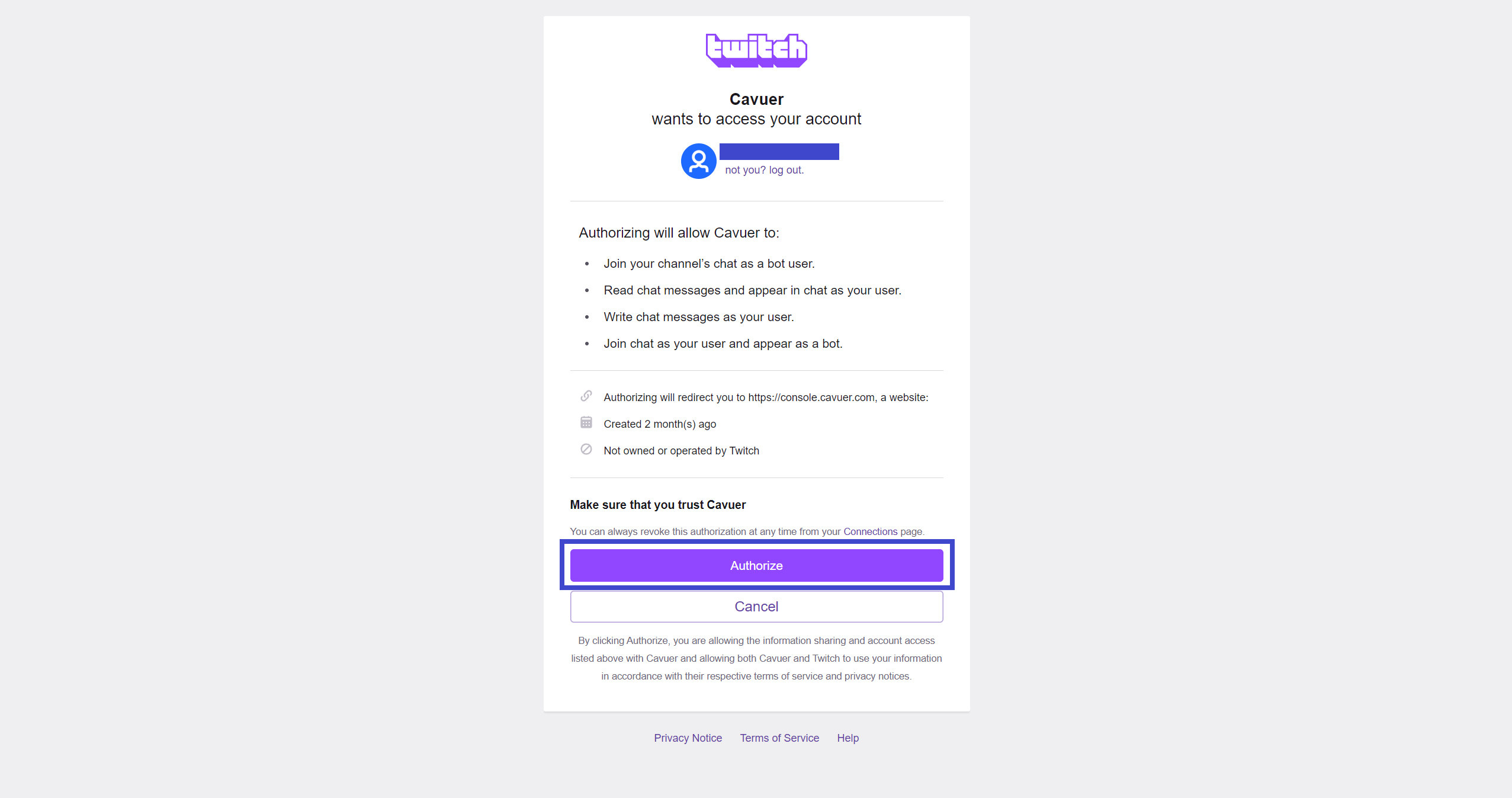
Step 4: Authorize with Twitch
You will be redirected to the Twitch authorization page. Click "Authorize" to grant Cavuer access to your Twitch account.
Granted Permissions
Authorization will allow Cavuer to:
- Join your channel's chat as a agent
- Read chat messages
- Send messages on your behalf
- Appear as a agent in chat
Step 5: Go to Agent Settings
After authorization, you will be redirected back to the dashboard. Click the icon next to your new channel.
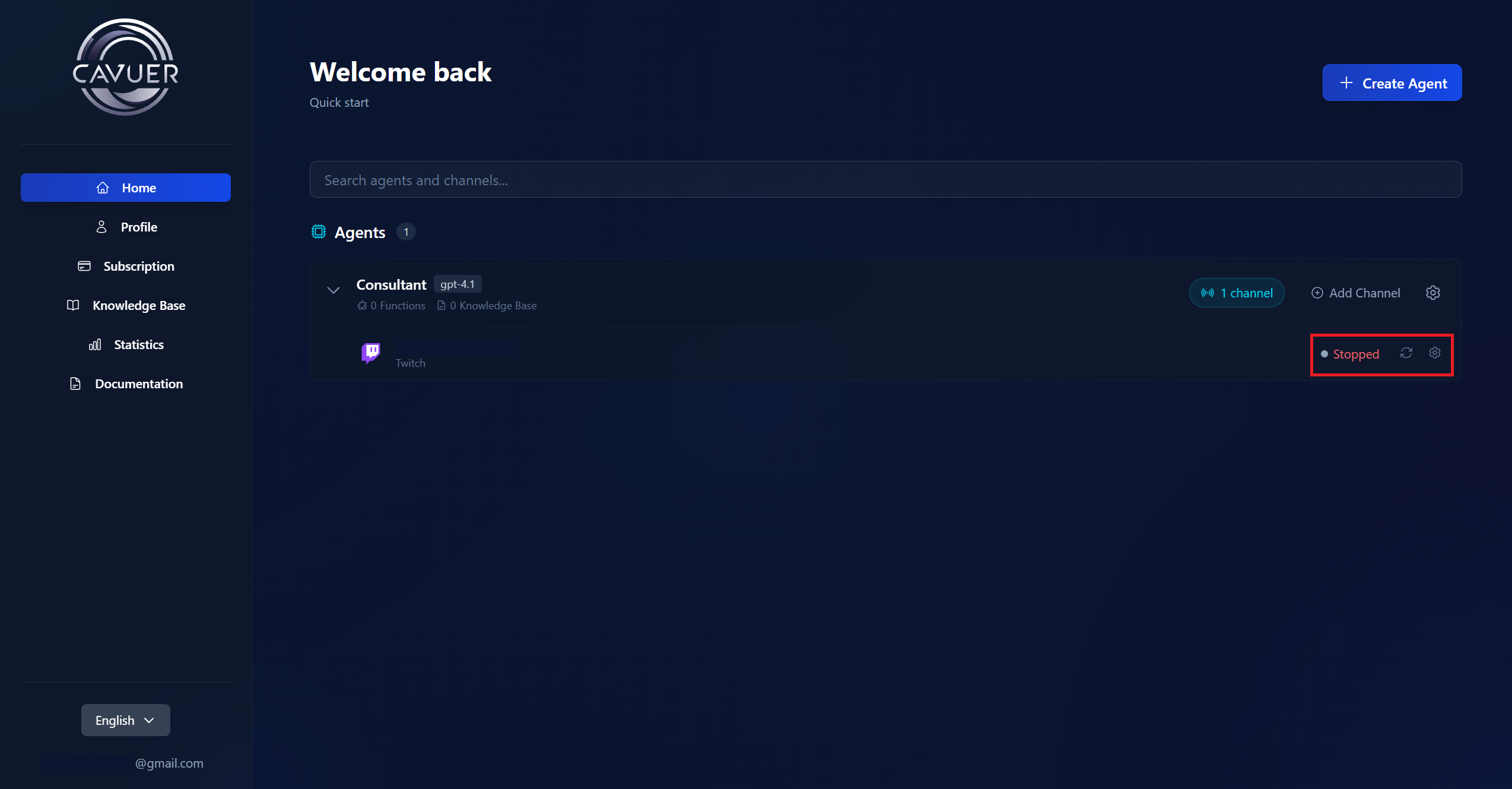
Step 6: Configure Agent and Channel
Status
Toggle the status slider in the channel settings from Off to On to activate the agent.
Don't Forget!
Click the "Save" button at the bottom of the page after making changes.
Model
Select the language model in the agent settings.
Instructions
Define the agent's character and behavior. Describe:
- The agent's personality and tone of communication
- Who the agent belongs to (your channel name)
- Topics the agent should focus on
- Any restrictions or rules
Trigger Word
Important for Twitch!
Twitch does not allow messages to start with /. Change the default trigger word to something else, for example: bot or your channel name.
Set a trigger word in the channel settings. The trigger word activates the agent to respond. Users must start their message with this word.
Message Retention (Days)
We recommend setting this to 1 day for Twitch.
Learn more about agent and channel setup
Step 7: Start Chatting!
Go to your Twitch channel chat and use the trigger word to interact with the AI agent.
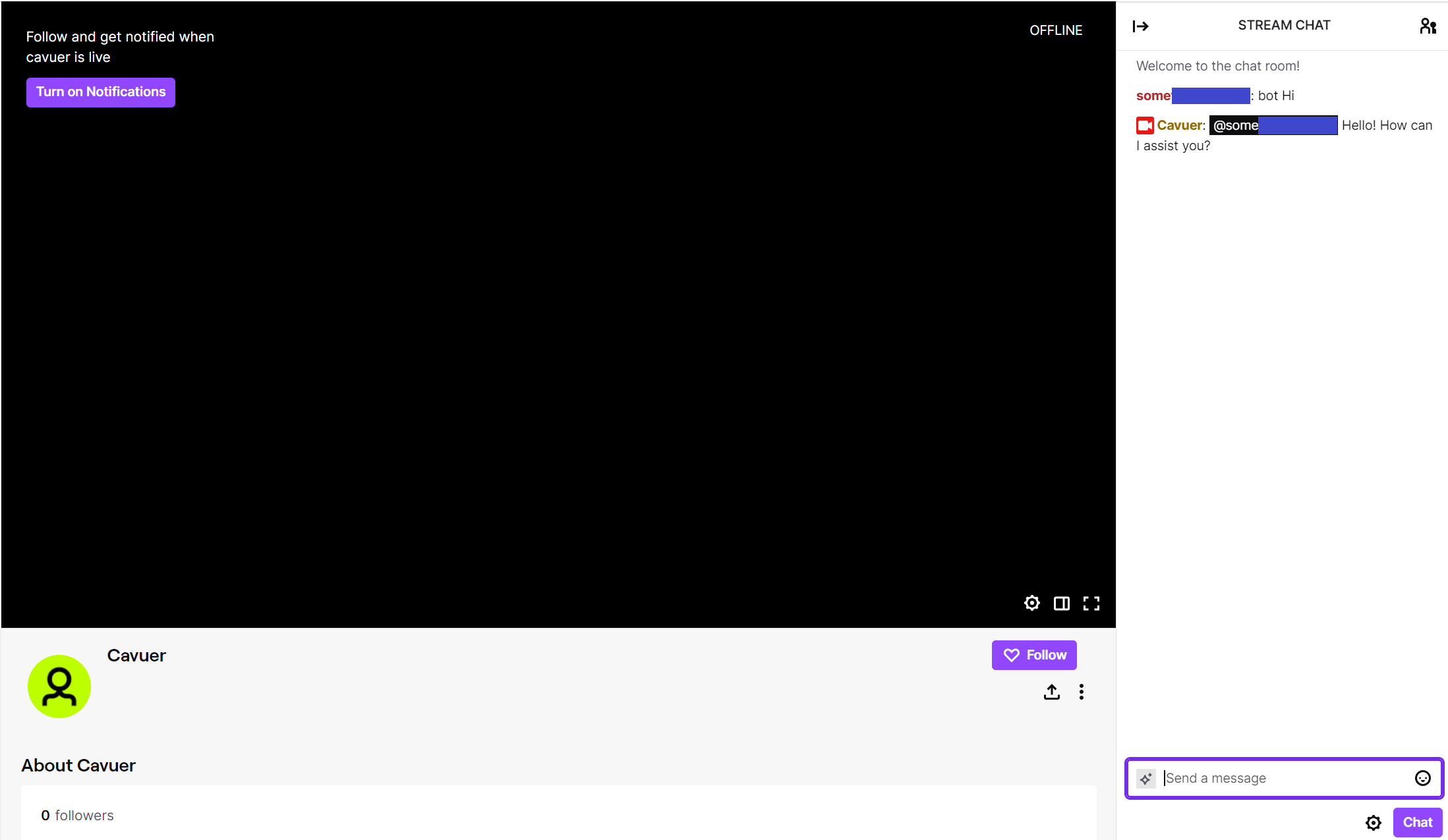
Chat Example
Viewer: bot Hey! How's it going?
YourBot: @Viewer Hey there! How can I help you today?
 Recommended Settings
| Setting | Recommended Value | Description |
|---|---|---|
| Model | gpt-4.1 | Best balance of quality and speed |
| Trigger Word | bot | Simple and easy to remember |
| Message Retention | 1 day | Optimal for stream chats |
| Response Delay | 0–1 seconds | Fast responses for live chat |
 Tips for Streamers
Audience Engagement Tips
- Unique Personality: Give your agent a unique character that matches your stream's atmosphere
- Moderation Commands: Add instructions for answering common questions about stream schedule, social media links, etc.
- Trigger Word: Choose something simple and memorable for viewers
Done!
Your Twitch agent is set up and ready to engage with your audience. Happy streaming!
Need Help?
If you have any questions about configuring your agent or connecting a channel, please contact our support team.