Instagram
 Quick Start
Launch your agent in two steps.
Requirements
Only an Instagram business account can be connected. If you have a personal account, switch it to a business account in Instagram settings before proceeding.
Step 1 — Create an Agent in Cavuer
An agent is an AI profile that manages your channels. You can connect multiple communication channels to a single agent at the same time.
- Go to your account at console.cavuer.com
-
Click Create Agent, set a name, choose a language model, and add instructions
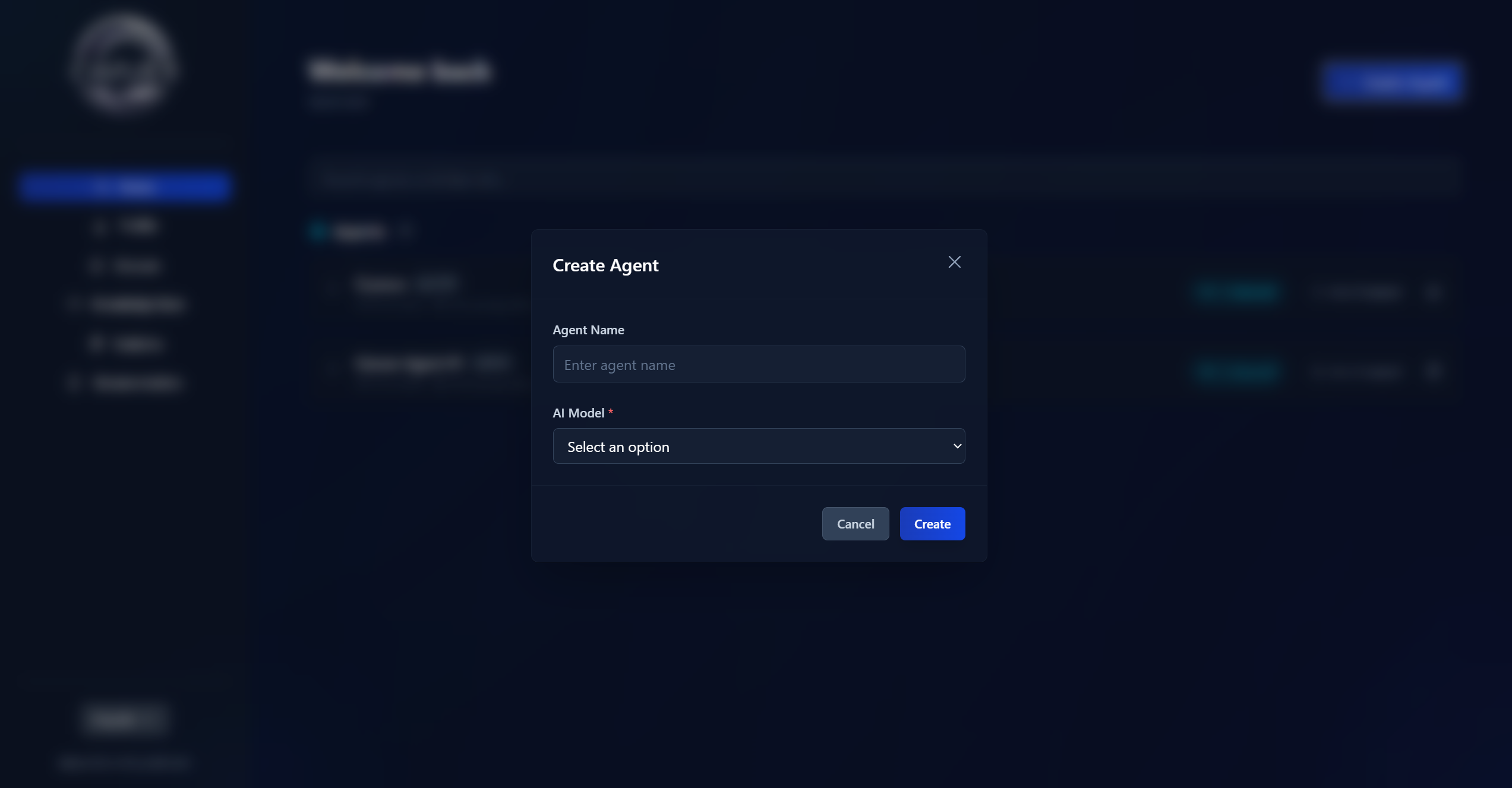
Example instruction
You are a polite support assistant for "MyCompany".
Always address the customer by name.
Only answer questions related to our services.
If you don't know the answer — suggest contacting an operator.
Choosing a language model
Each model differs in speed, accuracy, and cost. For most support tasks, GPT-4 and Claude Haiku family models work great. For complex analytical tasks, GPT-5, Claude Sonnet, or Claude Opus family models are a better fit.
Step 2 — Connect the Instagram Channel
Before connecting
Make sure you are logged in to Instagram in the same browser you use for the Cavuer dashboard.
-
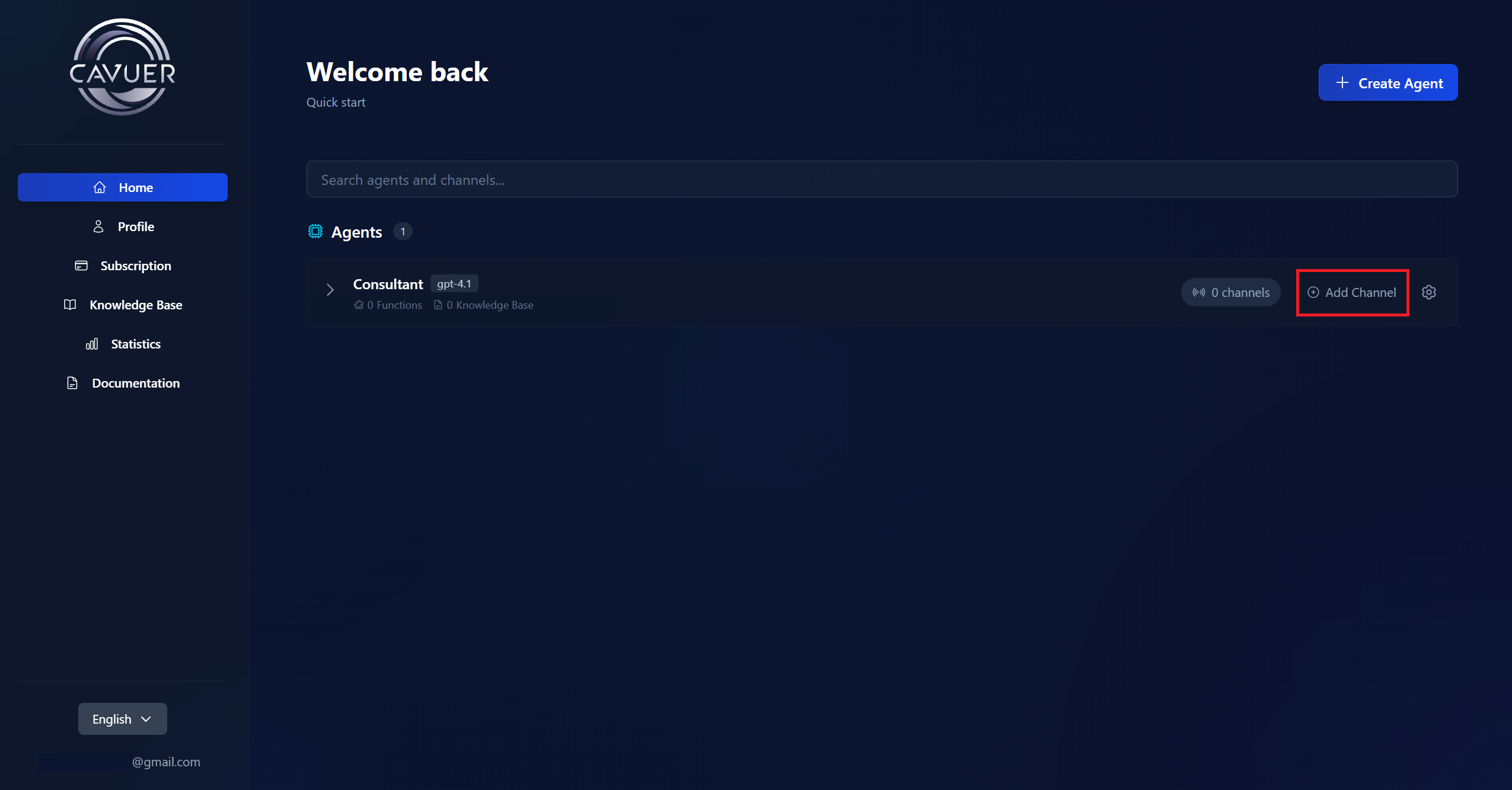
On the main page, click Add Channel next to the agent and select Instagram
-
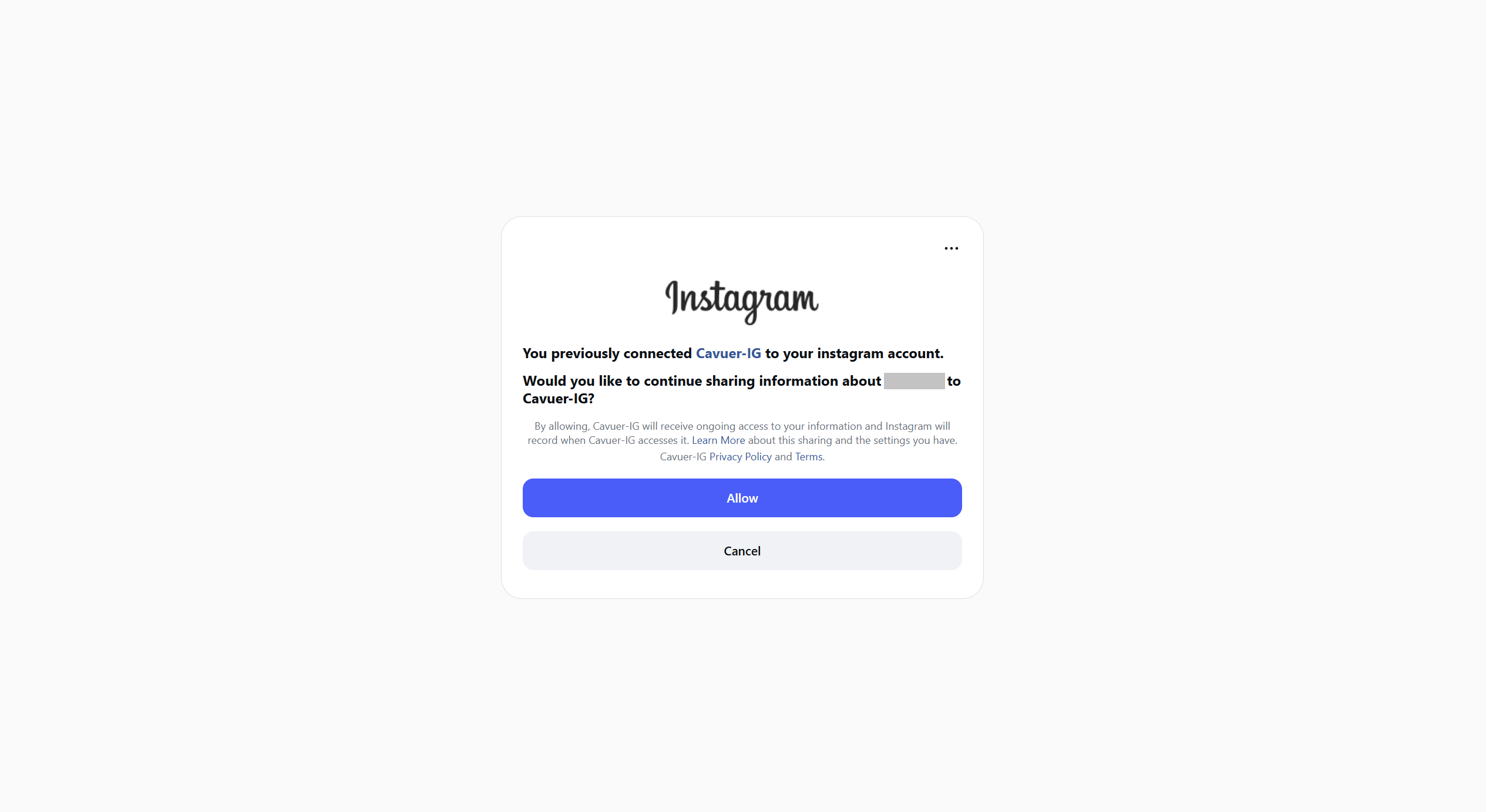
You will be redirected to the Instagram authorization page
-
Confirm all requested permissions — they are required for the agent to work correctly
-
After confirmation, you will be automatically returned to the Cavuer dashboard and the Instagram channel will be enabled automatically
 Done! Your AI agent is connected to Instagram. All incoming Direct messages will be processed automatically based on the agent's instructions and knowledge base.
 Advanced Setup
Agent Settings in the Cavuer Dashboard
Configure agent behavior at console.cavuer.com:
| Parameter | Description |
|---|---|
| Name | Rename the agent and channel for easy use in the Cavuer dashboard |
| Model | Choose a language model |
| Instruction | Agent behavior rules: greeting, company description, conditions for transferring to an operator, language settings. Specify whether the agent should reply in the customer's language or only in a specific language |
| Response delay | Delay before sending a reply. Useful when customers send multiple messages in a row — the agent will wait and process all messages together |
| Process images | Allows the agent to view and analyze image content |
| Process audio | The agent will be able to transcribe voice messages |
| Knowledge base | Upload .txt, .pdf, or .docx files and attach them in the agent settings |
Full parameter reference: Agent and Channel Setup
Knowledge Base Setup
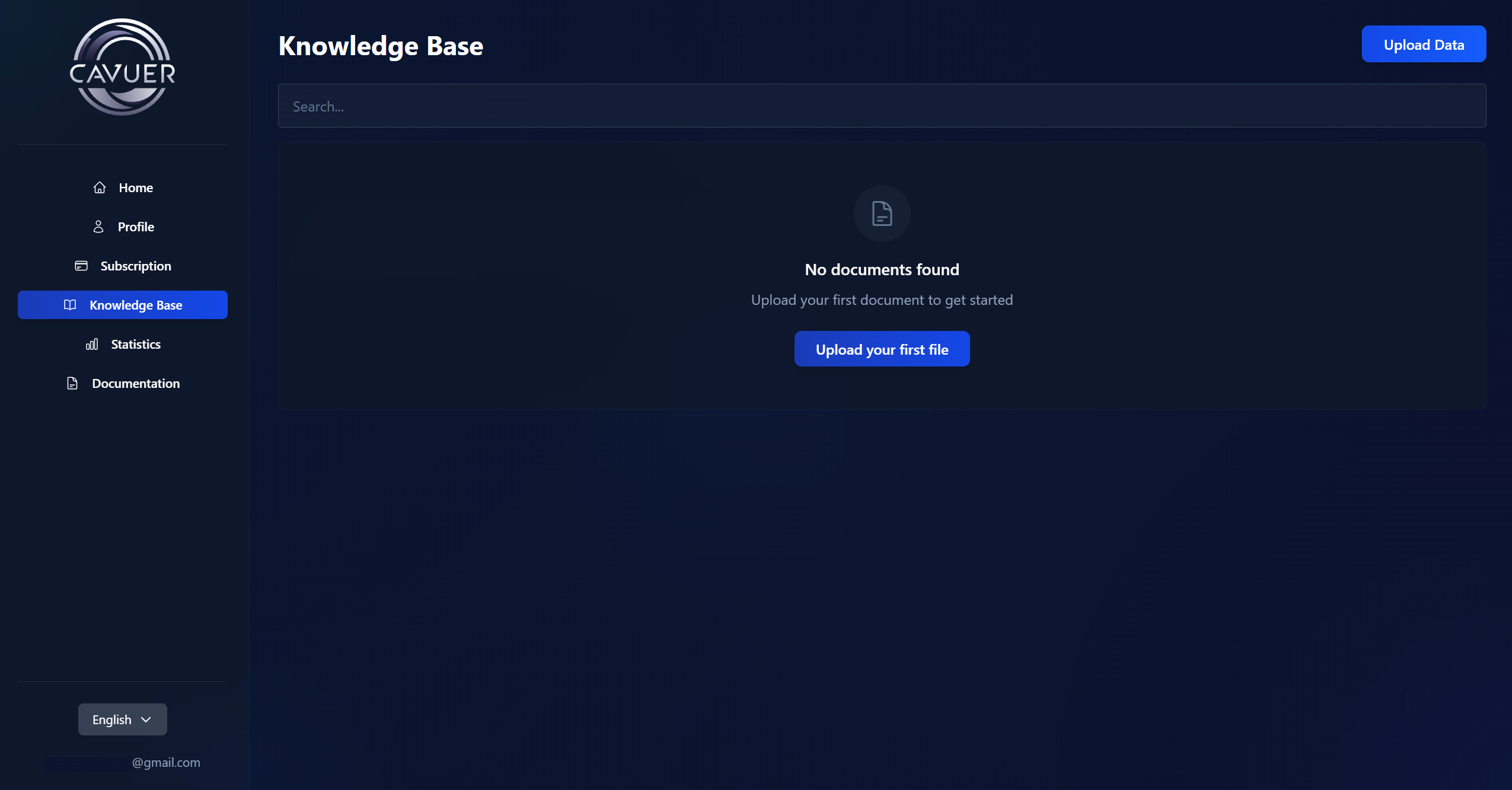
The Knowledge Base is the agent's source of information. There are two ways to populate it:
1. Uploading individual articles. Go to the Knowledge Base section → click "Upload Data" → on the "File" or "Text" tab, enter a title and add the content (.pdf, .docx, .txt files or plain text).
2. Creating collections. Click "Collections" → "Add Collection" and choose a source type: Website, Yandex Wiki, or Confluence. Cavuer will automatically crawl and index the pages.
Then, in the agent settings under Knowledge Base, click "Link Data", select the required articles or collections, and save your changes. For more details, see Knowledge Base.
Knowledge Base Best Practices
- Break up large texts — create smaller articles for specific topics (e.g. separate articles for "Delivery", "Payment", "Returns")
- When editing, use the "Replace Source" function — simple text edits don't update the search index
- Remove unnecessary pages from collections — this improves the accuracy of relevant information retrieval
- Link to documentation — upload a brief summary and include a link to the full version
Disconnecting the Integration
To disconnect the Cavuer app from your Instagram account:
- Open Instagram and go to More → Settings
- Open Website Permissions → Apps and Websites
-
Find the Cavuer app and click Remove
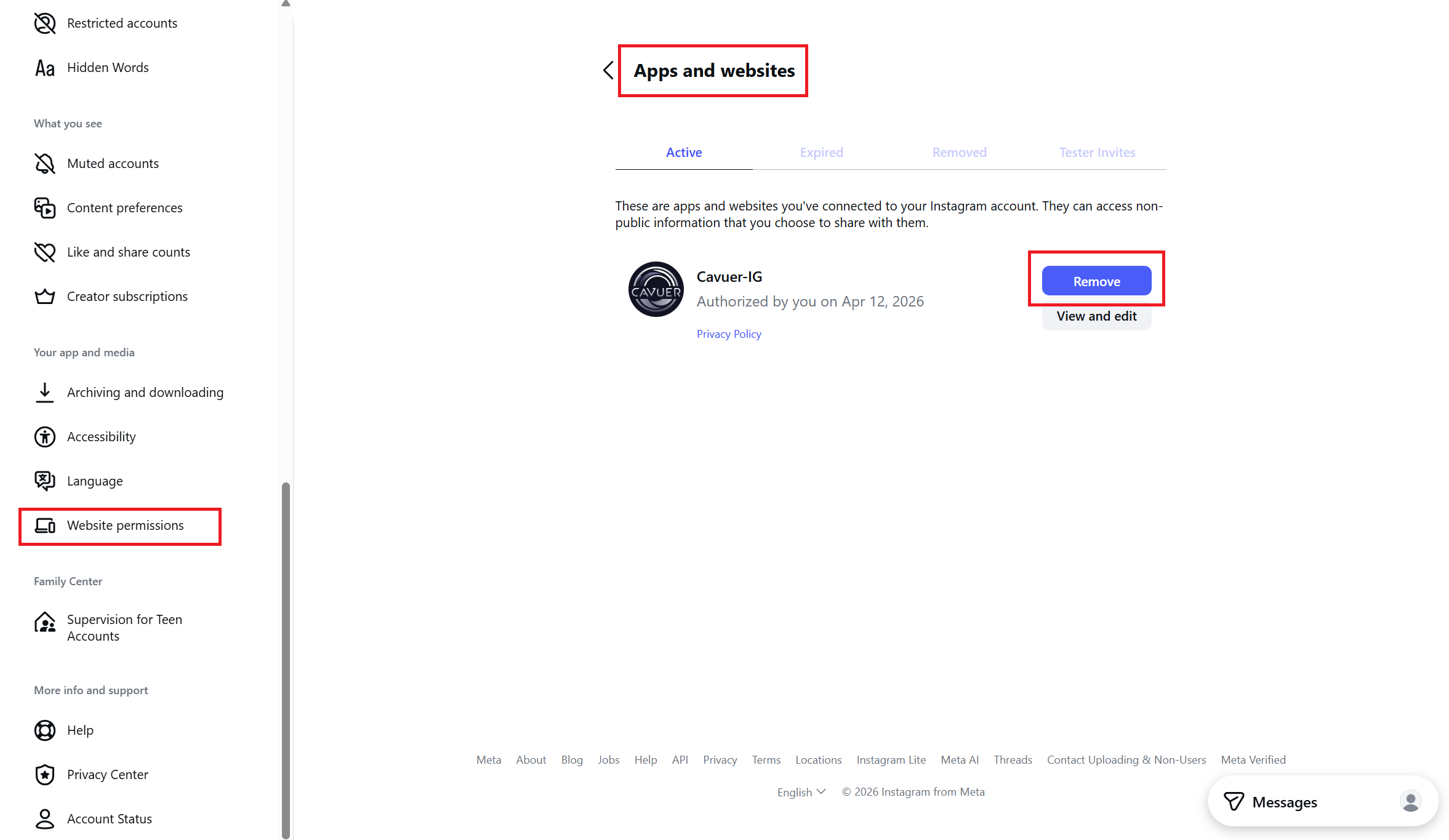
After removing the app, the Instagram channel in the Cavuer dashboard will be automatically disabled.
Data deletion
If you would like to request deletion of your data, please review the data deletion instructions and contact us.
Need help?
If you have any questions about setting up your agent or connecting the Instagram channel, please contact our support team.